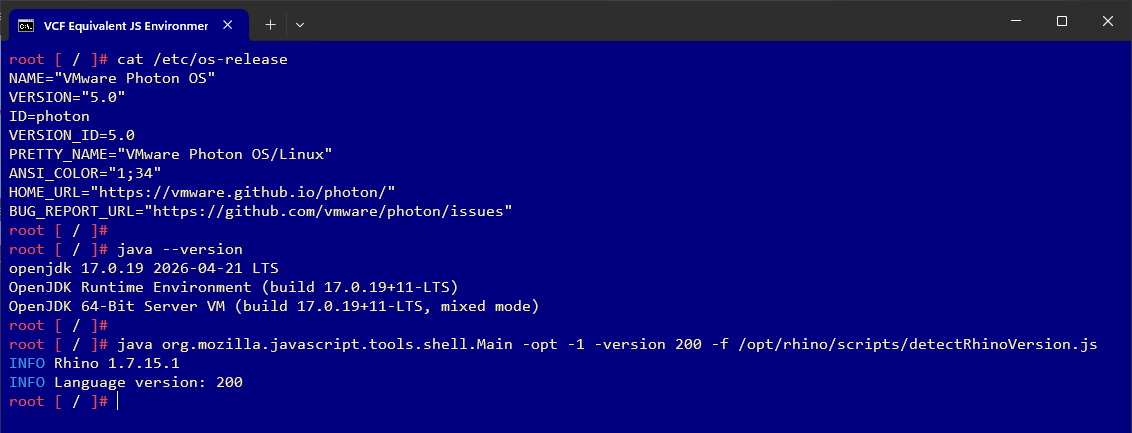
The JavaScript Runtime Environment (RTE) from VCF Automation contains a combination of various specific components. The JavaScript RTE is built on VMware Photon OS, using Bellsoft Java JDK and the Rhino JavaScript engine. Building on that is the Dunes Framework with its objects. This post describes how to build a container that closely follows this approach, to provide an environment for development and testing.
Build Container with Equivalent JavaScript Runtime Environment
This post explains how to build a container using Podman in the Windows Subsystem for Linux (WSL). This requires that WSL and Podman are already installed.And it is necessary to start podman on Windows first with the command
podman machine start.It is also necessary to stop Podman again at the end with
podman machine stop, that should not be forgotten.
Build Photon OS Container
Hint: For the following step is an internet connection necessary.Download the latest Photon OS release with the command
podman pull docker.io/library/photon:latest
Now it is necessary to start and connect to the container in interactive mode with
podman run -it --name photon5 photon
There is no editor available in Photon, so it is necessary to install one with
tdnf install nano
history -c clears the input history and exit leaves the interactive mode.
The following command sequence save the changes, the container as an archive and Podman is being reset.
|
Build Rhino JavaScript Container
Install Bellsoft JDK
Load Photon OS 5 container image from archive file withpodman load -i photon5.tar
Start and connect the container in interactive mode with
podman run -it --name photon photon
Download Bellsoft Liberica JDK 17, copy and unpack it in the container.
|
Install Rhino JavaScript Engine
Download the Rhino JavaScript engine 1.7.15.1 and copy it in the container.Hint: If you are using VMware Aria Automation release 8.18 or earlier, it is also possible to use the release 1.7R4 of the Rhino JavaScript engine, the procedure is the same.
|
Customize Configuration
Create and edit the file .bashrc in the home directory withnano ~/.bashrc
Add the environment variables
|
Test the Installation
To apply the changes immediately (without restarting), it is necessary to reload the file .bashrc withsource ~/.bashrc
Get the Java version with
java --version
It should deliver
|
Try a command with the Rhino shell
java org.mozilla.javascript.tools.shell.Main -e "print('Hello World');
It should deliver
Hello World
Complete the Installation
history -c clears the input history and exit leaves the interactive mode.
The following command sequence save the changes, the container as an archive and Podman is reset.
|
Build VCF Equivalent Container
Load Rhino JavaScript container image from archive file withpodman load -i photon5_rhino1.7.15.1.tar
Start and connect the container in interactive mode with
podman run -it --name photon_rhino photon_rhino
Create directories in the container
|
Download the emulation libraries and copy it in the container
|
To test the installation, a tiny JavaScript hello world program is build with the nano editor.
|
|
It is executed with
java org.mozilla.javascript.tools.shell.Main helloWorld.js
It should deliver
INFO Hello World
Addendum
Change the directory withcd /usr/local/bin
Create and edit a shell skript with the name rhino
nano rhino
Add the code to call Rhino JavaScript engine
|
Make the shell script executable
chmod +x rhino
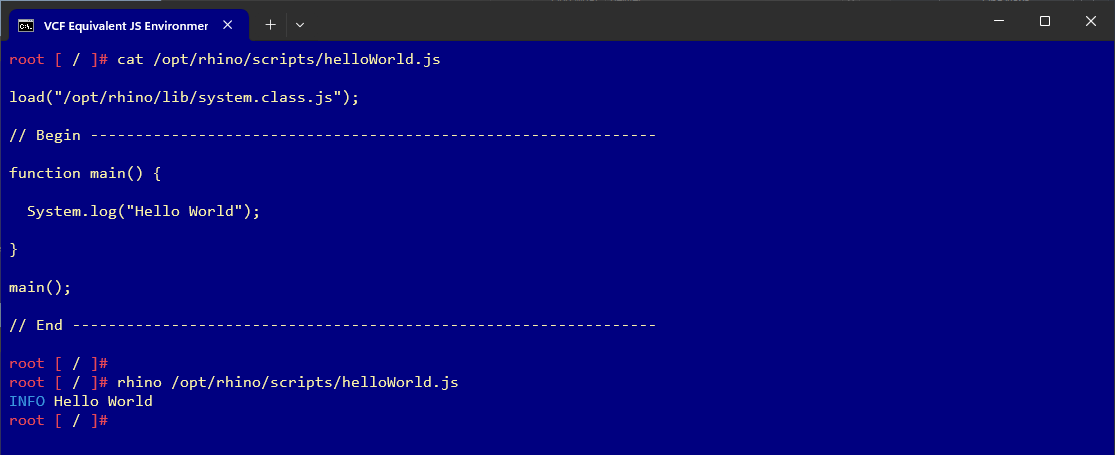
With these steps it is possible to call a Rhino JavaScript file with the rhino shell script, e.g.
rhino /opt/rhino/scripts/helloWorld.js
Complete the Installation
history -c clears the input history and exit leaves the interactive mode.
The following command sequence save the changes, the container as an archive and Podman is reset.
|
Use VCF Equivalent Container
Load VCF equivalent container image from archive file withpodman load -i vcf_javaccript.tar
Start and connect the container in interactive mode with
podman run -it --name vcf_js vcf_js
Execute a script file with
java org.mozilla.javascript.tools.shell.Main -opt -1 -version 200 -f yourScript.jsor
rhino yourScript.js