Normally actions are integrated into workflows and invoked from there. The way to invoke a workflow from an action is rather unusual and less common. However, this approach offers the advantage of complete embedding in a programming language environment. All the possibilities offered by coding can therefore be used. E.g. for unit tests, this means that quality assurance measures can also be implemented for workflows on this way.
Execute Workflow from Action
This post shows examplary how a workflow can be invoked up from an action. For this purpose we take the workflow 'Get virtual machines by name', which returns a list of virtual machines from all registered vCenter server hosts that match the provided expression. This workflow has the following Inputs/Outputs interface:
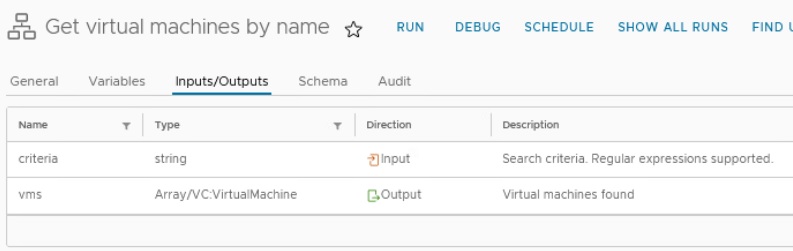
That's all we need to know to execute this workflow. The following action shows how to ...
- define the workflow,
- get the workflow,
- define the inputs,
- execute the workflow,
- wait until the workflow is terminated and
- get the outputs.
A simple sequence that can be used again and again, with the exception of the Inputs and Outputs, which must be adapted to the corresponding workflow.
/**
 * Example to call a workflow from an action.
 * In this case the workflow 'Get virtual machines by name' is called
 * to get all VMs which contains 'ubuntu' in its name.
 *
 * Important hint: A workflow must not contain any user interaction
 * or input element.
 *
 * @author Stefan Schnell <mail@stefan-schnell.de>
 * @license MIT
 * @version 0.2.0
 *
 * Checked with VMware Aria Automation 8.12.0 and VCF Automation 9.0.0.
 */

function callWorkflow(in_folderName, in_workflowName, in_inputs) {

  // Detect workflow and get its ID
  var workflowId = null;
  const workflowCategory =
    Server.getWorkflowCategoryWithPath(in_folderName);
  const allWorkflows = workflowCategory.allWorkflows;
  allWorkflows.forEach( function(workflow) {
    if (workflow.name === in_workflowName && workflowId === null) {
      workflowId = workflow.id;
    }
  });

  if (workflowId !== null) {

    const workflow = Server.getWorkflowWithId(workflowId);

    // Execute the workflow
    const workflowToken = workflow.execute(in_inputs);

    // Wait that the workfow terminated
    var workflowTokens = [];
    workflowTokens.push(workflowToken);
    System.getModule("com.vmware.library.vc.basic")
      .waitForCompletionForBatchWorkflow(workflowTokens);

    // Get the outputs
    return workflowToken.getOutputParameters();

  } else {
    System.warn("Can not find " + folderName + "/" + workflowName);
  }

}

function main() {

  // Define the inputs
  const criteria = "ubuntu";
  var workflowInputs = new Properties();
  workflowInputs.put("criteria", criteria);

  // Define folder and name of the workflow
  const folderName = "Library/vCenter/Virtual Machine management/Basic";
  const workflowName = "Get virtual machines by name";

  // Execute workflow
  const result = callWorkflow(
    folderName,
    workflowName,
    workflowInputs
  )

  // Get the result
  const result_vms = result.get("vms");
  result_vms.forEach( function(vm) {
    System.log(vm.name);
  });

}

main();
|
It is important that the Inputs and Outputs must be defined with their exact names that they have in the interface definition.
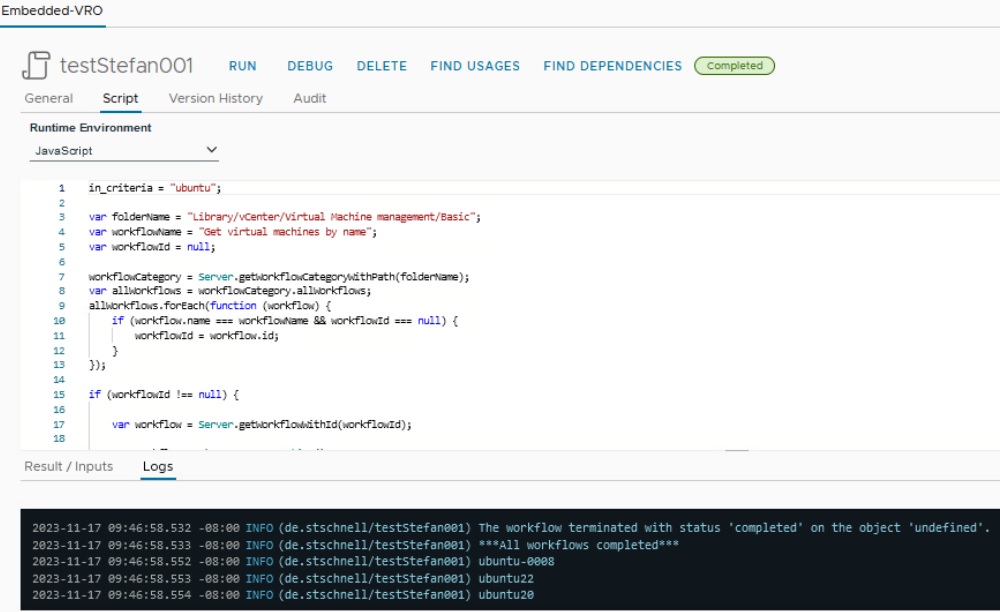
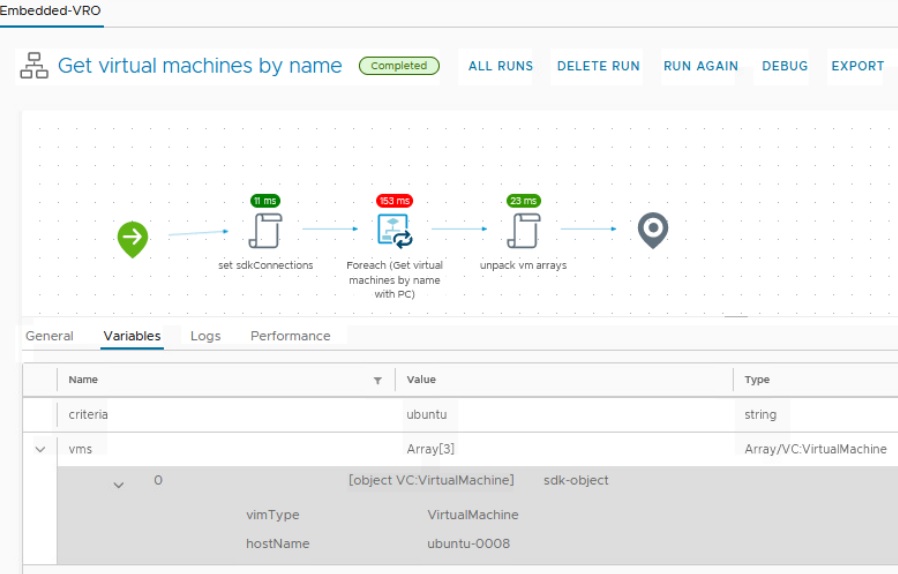
The following image sequence shows the result of executing the 'Get virtual machines by name' workflow with the criteria 'ubuntu' in the HOL.
The actions performed on this way are displayed in the Workflow Runs menu item.

Conclusion
As we can see, executing workflows from actions is very simple. This opens up many opportunities for us, e.g. as already mentioned, the integration of workflows in unit tests. The detailed logging of the workflows helps us to analyze the results quickly and clearly, to detect errors in this context.