Sometimes it could be necessary to make an individual user input to an action that is running. Normally an input is not possible because JavaScript runs in headless mode, this means that a screen, keyboard or mouse cannot be used. This blog post presents an approach that allows to made an user input during the runtime of a VCF Automation action.
User Input During Running Action
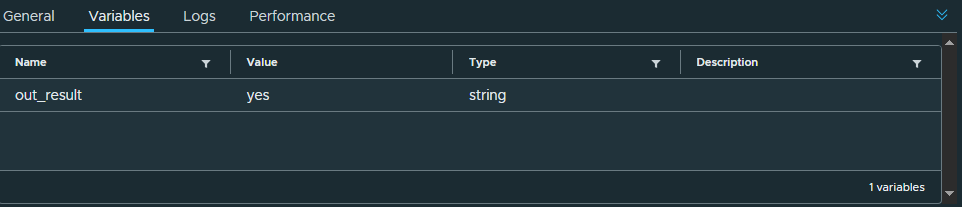
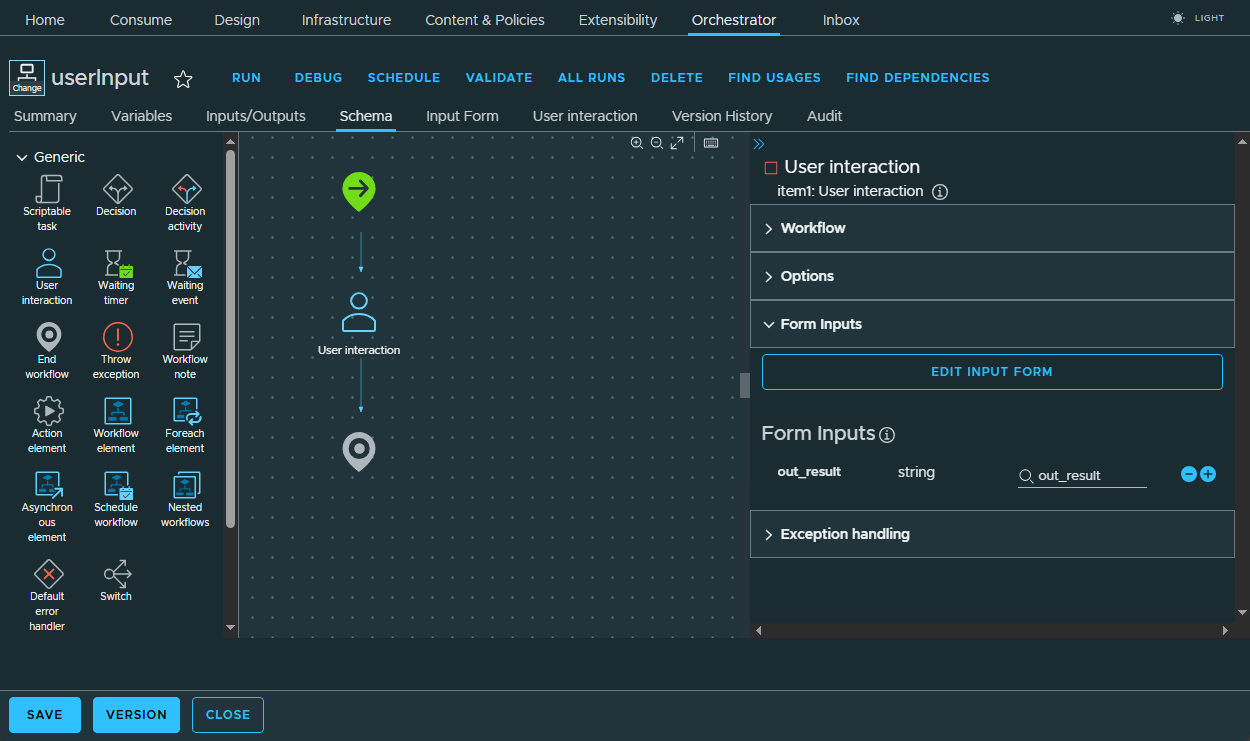
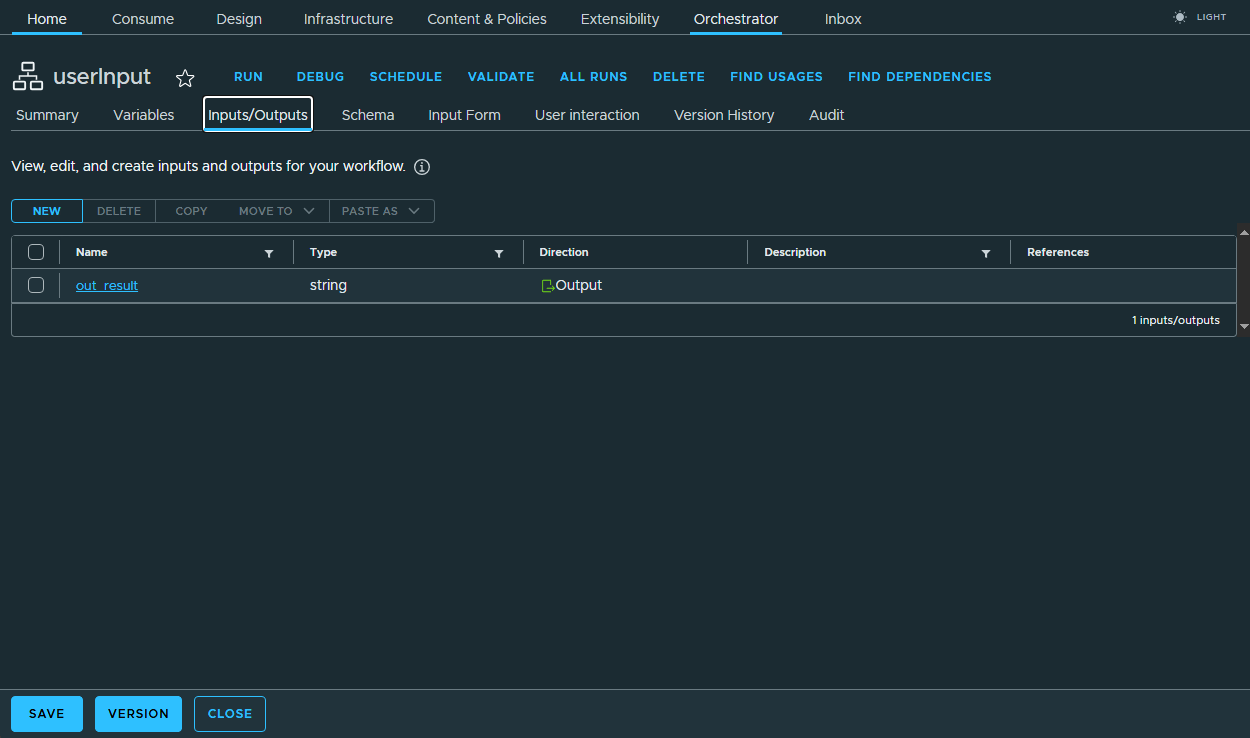
To enable an input we use a workflow that is called by the action. This workflow in this example contains only the User Interaction item. The workflow has also an output variable, in this example out_result, which gets the content from the User Interaction item. This variable contains the content that is to be processed in the action.
The following action now calls this workflow. In the main function this workflow is named and executed with the callWorkflow function. The result of the workflow, in this case the input, is assigned to a variable and output in the log.
|
In the action the waitForCompletionForBatchWorkflow function waits for the workflow to finish, in this case the user input. But the standard function of the com.vmware.library.vc.basic module has one disadvantage: If no input parameters are available, an exception is thrown. This is the case with the userInput workflow. Therefore a modified copy is used.
|
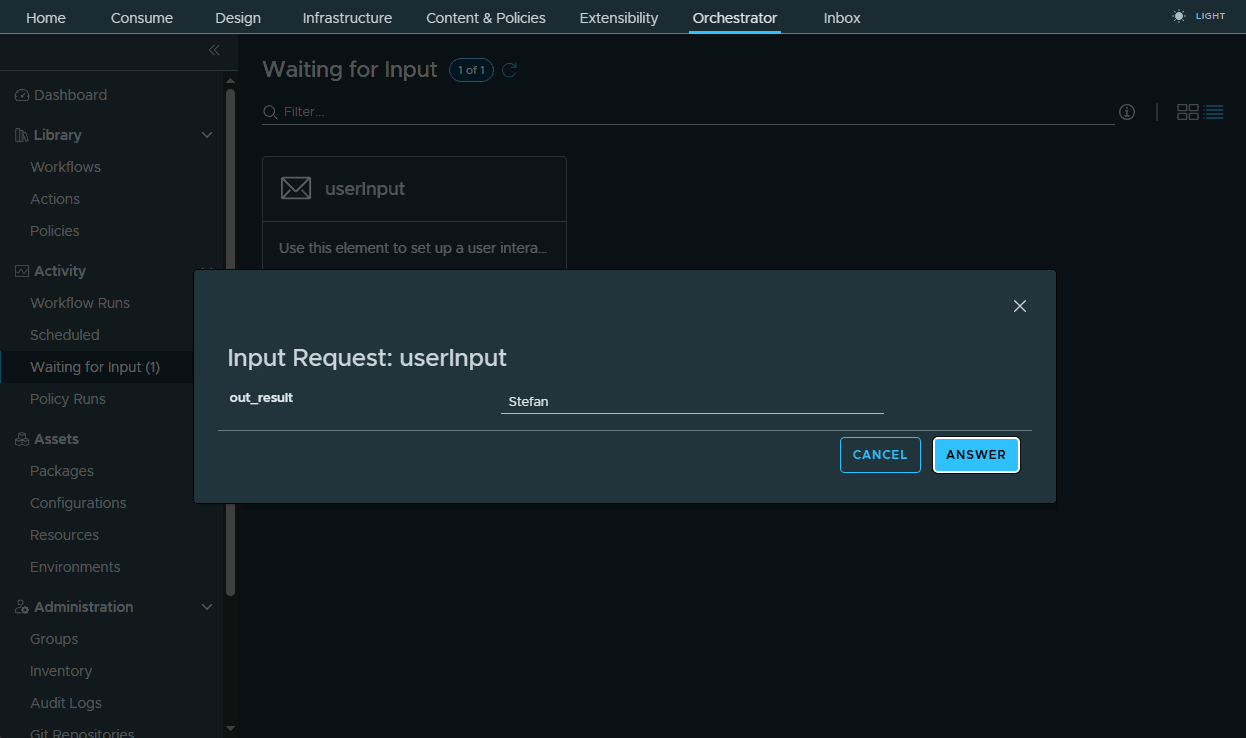
Once the action has been executed, it is necessary to select Waiting for Input in the side menu.
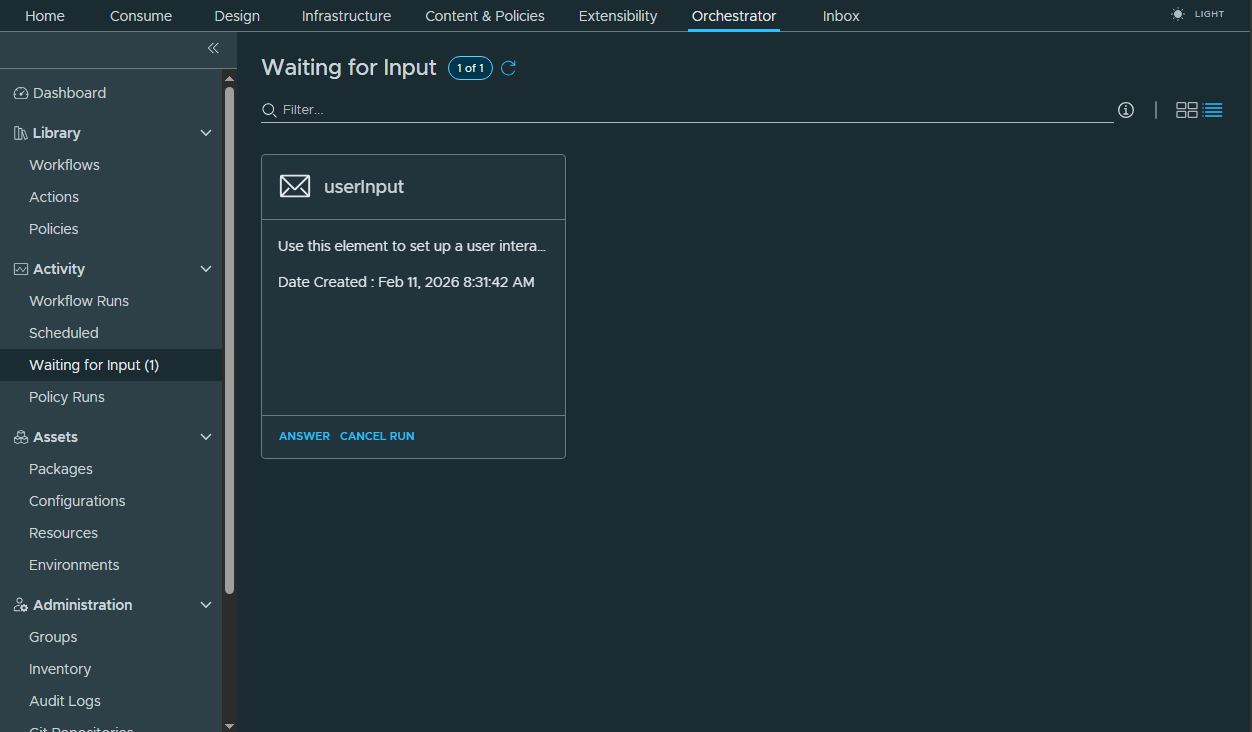
If Answer is selected, the input can be made.
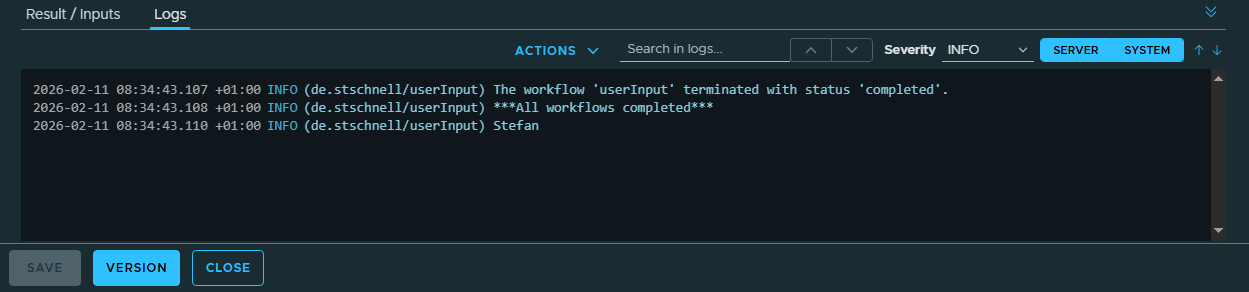
The action then processes this input.
Conclusion
It is possible to make inputs during the runtime of an action. Headless mode is bypassed by calling a workflow with the item User Interaction. This application may certainly be of interest for very specific use cases. At least in a development process, this makes it possible to respond individually to specific conditions.References
Addendum
Example - Yes/No/Cancel Dialog
The following description shows an example of how a yes/no/cancel dialog can be built, which can be used during the execution of an action as described above.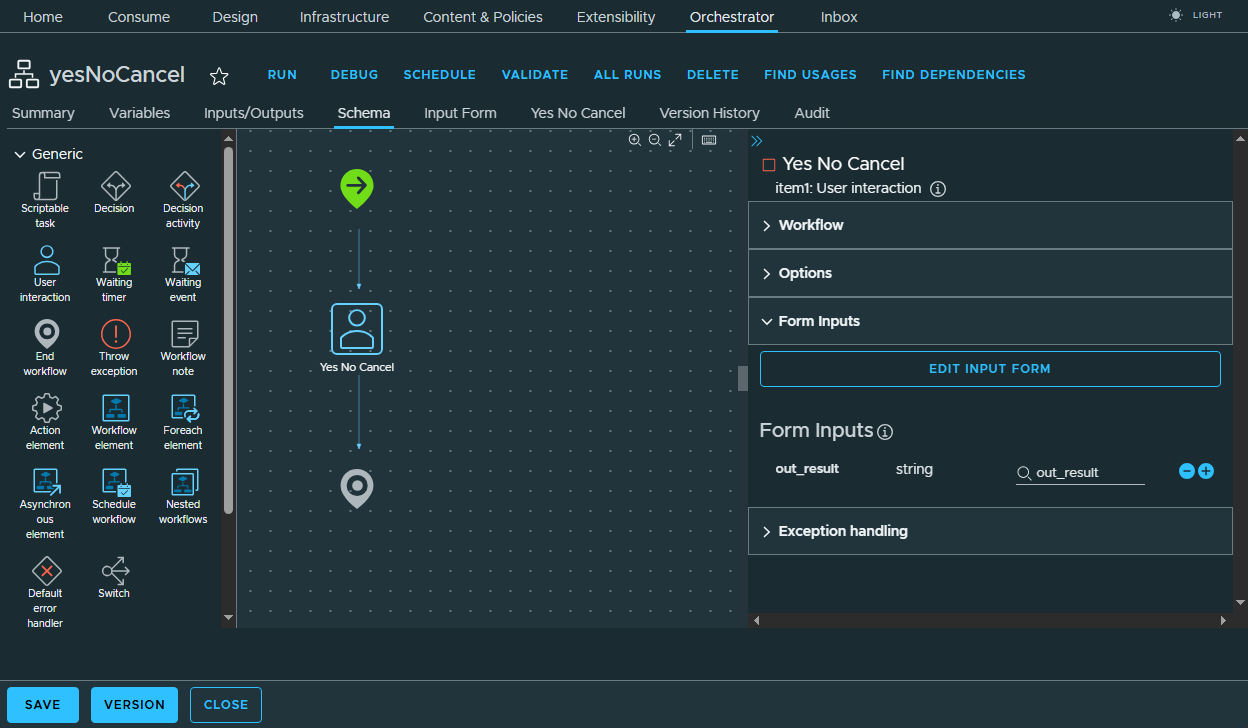
A radio group can be created using the Input Form Designer by modifying an existing input parameter. Here a simple description how to set it up:
-
Define input parameters
Before the form can be designed, a variable must be created to store the selected value. To do this, select the Inputs/Outputs tab in the workflow editor and define a new output variable, e.g. out_result, of type string.
-
Create radio group in the Input Form Designer
Now switch to the Input Form tab to customize the appearance. Select the desired parameter in the canvas, e.g. out_result. On the right-hand side, under Appearance, change the Display type from "Text Field" to "Radio Group". Now define the selection options in the Values tab. Select Constant as the Value source to enter fixed values. These fixed values must have a specific format. They must be entered in Options in the format Value|Label, e.g. yes|Yes, no|No, cancel|Cancel.
-
Linking to variables/logic
In order for the selected value to be used in the workflow, it must be linked to the schema element. In the Schema tab, select the script element, e.g. the User Interaction. Now add the parameter out_result in the In/Out area under Inputs.
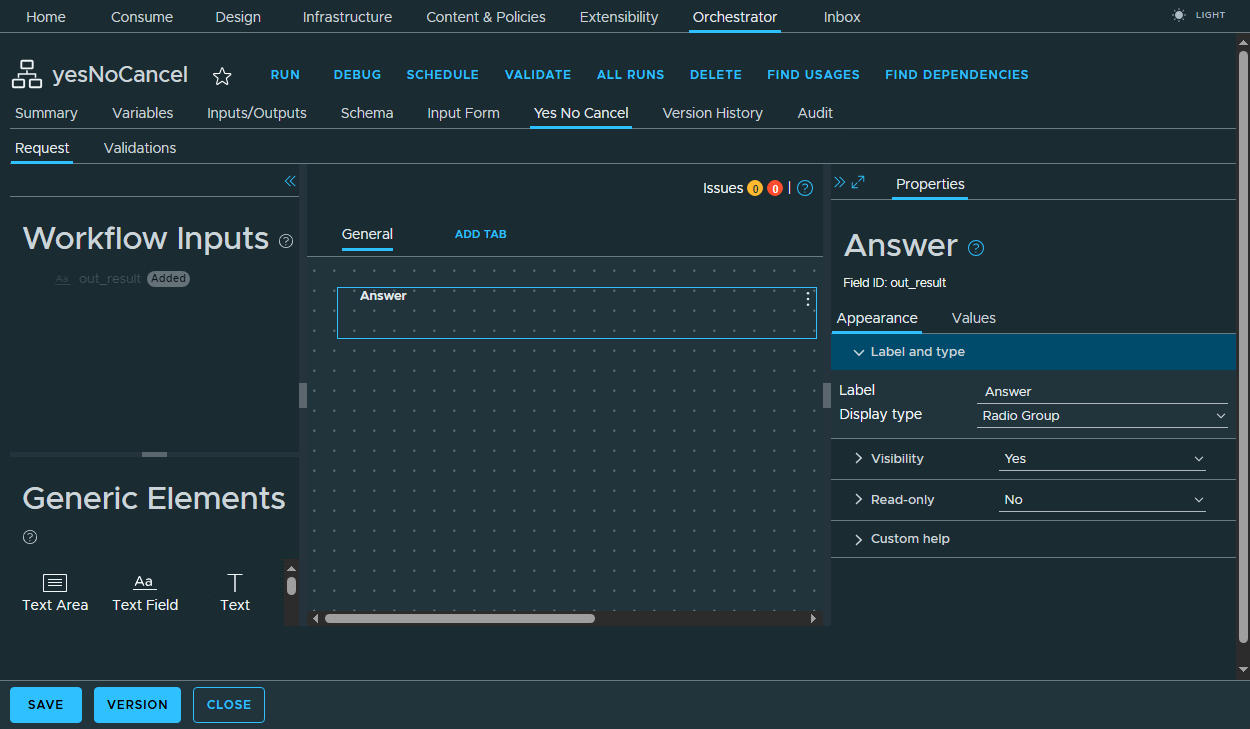
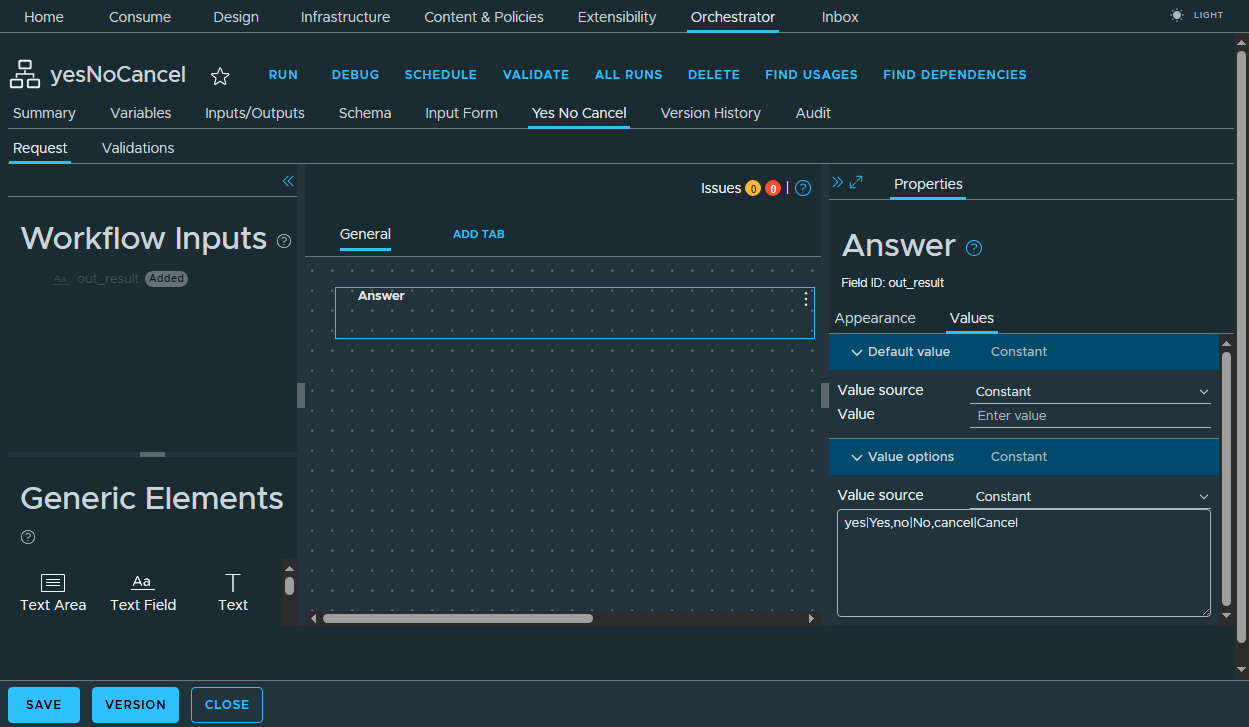
The dialog box is now ready for use.
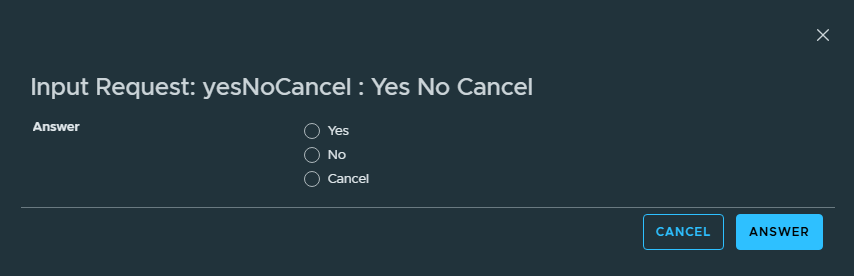
After selecting an option and pressing the Answer button, the desired value is returned in the variable out_result.